
 Hajra Naz
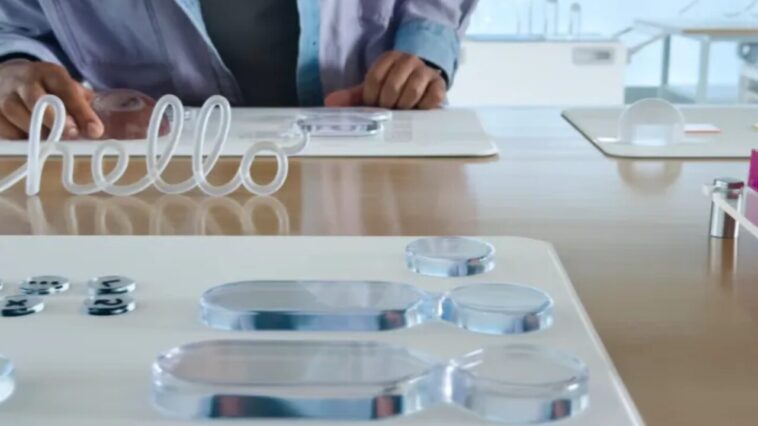
Apple is giving users more control over the look of its new Liquid Glass design. A new setting in the latest beta update lets you choose between Clear or Tinted styles, allowing you to personalize how your screen looks and feels.
This feature is available across the newest versions of iOS 26, iPadOS 26, and macOS 26, and shows Apple is paying attention to user feedback early in the software’s rollout.

Listening to User Feedback
Apple often introduces bold design changes but still offers ways to adjust them if users aren’t comfortable.
For example, in 2021, Apple moved Safari’s address bar to the bottom of the screen. Some users didn’t like it at first, so Apple added an option to move it back to the top.
The same philosophy applies to Liquid Glass — a major new look that’s sparked mixed reactions since its debut.
What Is Liquid Glass?
Liquid Glass is Apple’s biggest design change since switching from 3D-style icons to a flat look back in 2013. It gives the interface a shiny, see-through appearance, making parts of the screen look smoother and more fluid.
However, not everyone is a fan. Some users say the new design makes notifications and buttons harder to read, especially in apps like Apple Music.
Others love its clean, modern style, saying it makes the operating system feel fresh again.
Read More: Here’s Every New Product Apple Just Announced: iPhone 17, AirPods, Watches & More
The New Clear and Tinted Options
To address these mixed opinions, Apple is now giving users a choice.
You can now set Liquid Glass to either:
-
Clear – for a more transparent, glassy look
-
Tinted – for a darker, more solid look that’s easier to see
The feature first appeared in iOS 26.1 beta 4, as well as the matching betas for iPad and Mac.
During testing, Apple said it heard from users who wanted the option to make the interface more opaque (less see-through). The new Tinted option does just that.
How to Turn On the Feature
If you’re part of the beta program, you can try it now:
-
On iPhone or iPad: Go to Settings → Display & Brightness → Liquid Glass
-
On Mac: Go to System Settings → Appearance → Liquid Glass
From there, choose between Clear or Tinted.
Apple decided to keep it simple — no sliders or complex controls — just two easy options.
For Developers and App Designers
Apple confirmed that any app already using the Liquid Glass design will automatically match the user’s chosen setting.
Developers can test this now in the 26.1 developer beta, ensuring their apps work smoothly with either style.
After choosing your preference, you’ll see the change across your device, including in Now Playing controls, Lock Screen notifications, and both Apple and third-party apps.
When Will It Be Available
The feature is live now for developers in beta testing.
The public beta is expected to roll out within a few days, ahead of the next major release for all users.
Apple continues to tweak the look and feel of its software based on real-world feedback, showing that while it’s not afraid to innovate, it’s also willing to give users more control over their experience.
Read More: iPhones Will Now Block Nudity During Video Calls
FAQs
1. What is Liquid Glass in iOS 26?
Liquid Glass is Apple’s new interface design that adds a shiny, semi-transparent look to menus, notifications, and apps across iPhone, iPad, and Mac.
2. What’s the difference between Clear and Tinted?
Clear gives a more see-through, glass-like effect, while tinted adds a darker tone for better visibility and contrast.
3. How can I change my Liquid Glass setting?
Go to Settings → Display & Brightness → Liquid Glass on iPhone or iPad, or System Settings → Appearance → Liquid Glass on Mac.
4. Will app developers need to update their apps?
No. Apps that already support Liquid Glass will automatically follow the user’s chosen setting.
5. When will this feature be available to everyone?
It’s in iOS 26.1 beta now and expected to launch publicly soon — likely within the next major update rollout.